> For the complete documentation index, see [llms.txt](https://docs.hedge.video/llms.txt). Markdown versions of documentation pages are available by appending `.md` to page URLs; this page is available as [Markdown](https://docs.hedge.video/offshoot/features/reports.md).
# Reports
Wrapping up your day? Ready to hand over your data? Summarize any combination of Transfer Logs into a Report.
#### Requirements
* OffShoot 26.1 or later
#### How to use
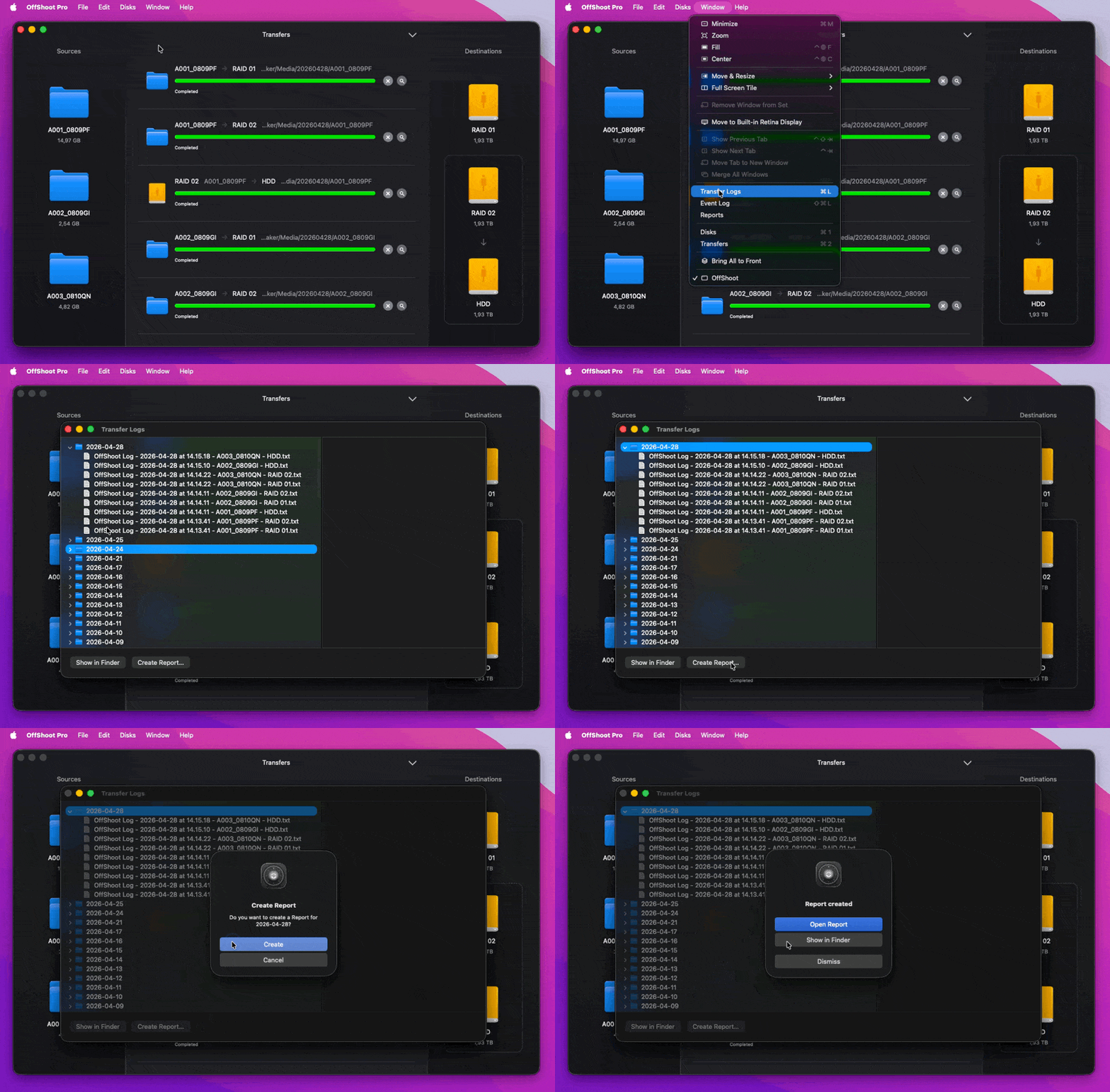
1. Go to OffShoot > Window > Transfer Logs (CMD-L / Ctrl-L)
2. Select one or more day folders
3. Click the "Create Report" button
When finished, an HTML and PDF report will be created.
{% hint style="info" %}
Open the Reports folder via OffShoot > Window > Reports.
{% endhint %}
## Report Sections
Reports are organized top-to-bottom so you can quickly confirm that all Sources were copied and verified (see Figure 1), then drill down into per-source details (See Figure 2).
* **Header**\
Shows the Report title, date, and optional note, configured in `OffShoot` › `Settings` › `Reports`.
* **Summary**\
High-level totals for all transferred Sources, including Destinations, files, size, and clips.
* **Sources**\
List of all transferred Sources with dates, clip and file counts, sizes, verification settings, checksum type, and overall status.
* **Destinations**\
Aggregated totals per destination, showing how many Sources, files, and total data were transferred and their status.
* **Source Details**
Per-source transfer details, including file/clip name and duration, sizes, checksums, status per destination, and transfer log name and location.
Figure 1 - Report Summaries
Figure 2. - Source Details
## Settings
The Reports settings control how OffShoot generates Reports from your Transfer Logs.
* **Logo:** Choose the logo shown at the top of your Report.
* **Title**: Set the title used in the Report header.
* **Note:** Optional note shown after the Report date.
* **Clip Awareness**: Adds clip sections to the Report with thumbnails and metadata. When enabled, OffShoot generates clip thumbnails and extracts media metadata after transfer, using the first Destination.
{% hint style="info" %}
For Pro users, **Clip Awareness** has an extra benefit: it’s not only used to populate the Report, but all of the metadata is also saved in a JSON. Together with [Scripting](/offshoot/features/automation/scripts.md), you can use it to trigger automations and feed data to other downstream apps like a MAM.
{% endhint %}
Reports Settings
### Exclude Transfers from Reports
Reports are generated from all transfers within a selected day folder. If a day includes multiple productions or unrelated transfers, you can control exactly which transfers are included in a Report.
To exclude specific transfers:
1. Open the Transfer Log window and click Show in Finder/Explorer.
2. Enable Show Hidden Files in your file browser.
3. Locate the transfer `.json` files corresponding to the transfers you want to exclude.
4. Move those files to a different folder (you can move them back at any time).
5. Return to OffShoot and generate your report.
---
# Agent Instructions
This documentation is published with GitBook. GitBook is the documentation platform designed so that both humans and AI agents can read, navigate, and reason over technical content effectively. Learn more at gitbook.com.
## Querying This Documentation
If you need additional information that is not directly available in this page, you can query the documentation dynamically by asking a question.
Perform an HTTP GET request on the current page URL with the `ask` query parameter, and the optional `goal` query parameter:
```
GET https://docs.hedge.video/offshoot/features/reports.md?ask=&goal=
```
`ask` is the immediate question: it should be specific, self-contained, and written in natural language.
`goal` is optional and describes the broader end goal you are ultimately trying to accomplish on behalf of the user. GitBook uses it to tailor the answer towards what is most useful for that goal.
The response will contain a direct answer to the question and relevant excerpts and sources from the documentation.
Use this mechanism when the answer is not explicitly present in the current page, you need clarification or additional context, or you want to retrieve related documentation sections.